Showing posts with label Decorator Pattern. Show all posts

Thursday, January 17, 2019

More DI: The Real Power of Decorators -- Stacking Functionality

Over the last several articles, we have looked at a decorator to add retry functionality, a decorator to log exceptions, and a decorator to add a client-side cache. We've seen that decorators let us easily add functionality without creating subclasses and without modifying our existing objects.

But the real power of decorators is that we can stack the functionality one piece at a time. (Okay, so there are several compelling reasons to use the decorator pattern even if we are not stacking functionality; but the stacking is really cool.)
Small pieces of functionality are easier to test. By stacking decorators, we can mix and match the pieces of functionality that we need.
This article is one of a series about dependency injection. The articles can be found here: More DI and the code is available on GitHub: https://github.com/jeremybytes/di-decorators.

The Data Reader Decorators
The decorators in the application operate on the "IPersonReader" interface (from the "Common" project, IPersonReader.cs file):


All of the decorators wrap the interface "IPersonReader" and also implement the interface "IPersonReader". This means that the decorators can wrap other decorators.

Let's see how this works step-by-step.

Behavior Without Decorators
For this article, we'll modify the "ComposeObjects" method in the startup of our application. This is in the "PeopleViewer" project, App.xaml.cs file. We'll start with just the behavior without decorators: using the web service data reader.

As a reminder, the code shown here is different from the final code in the GitHub project. If you'd like to follow along, just replace the code in the "ComposeObjects" method with what we have here.


This method puts together 3 objects. Starting from the last line, (1) we create a MainWindow instance; this is the main form of the application. The MainWindow needs a view model, so (2) we create a PeopleReaderViewModel instance to pass to the MainWindow. The view model needs an IPersonReader, so (3) we create a ServiceReader instance (to get data from a web service) and pass that to the view model.

A Nested Composition
As an alternative to this syntax, we can also use a "nested" syntax that gets rid of the intermediate variables. This is in the "AlternateComposeObjects" method in the same file.


This is a little easier to read since we can see what is nested in what. The "ServiceReader" is nested in the "PeopleReaderViewModel" which is nested in the "MainWindow".

I'll show both of these syntaxes along the way. They both have their pros and cons when it comes to readability.

Running the Application
As a reminder, to run the application we need to start the web service. This is in the "People.Service" project. The easiest way to start the service is to navigate a command window to the project folder, and type "dotnet run".


This shows the service listening on "http://localhost:9874", and you can navigate to "http://localhost:9874/api/people" to see the service in action.

Then we can run the application in Visual Studio. When we click the "Refresh People" button, we get data back.
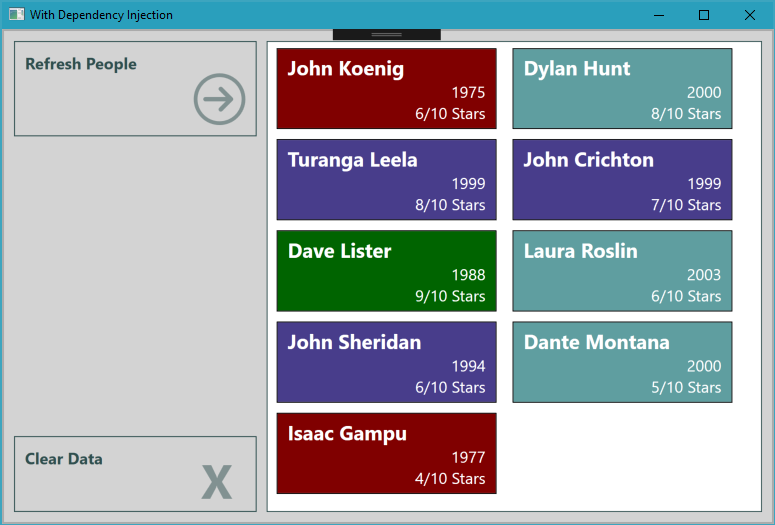

Now we'll go back to the command window and stop the service with "Ctrl-C".


With the service stopped, click "Clear Data" and "Refresh People". Then we see the following error:


As a reminder, if the code stops in the debugger, just click "Continue" or press "F5" to run past the exception.

Now let's see what happens when we start adding functionality.

Adding a Retry Decorator
The first step is to add the decorator to retry the call if it fails. This described here: More DI: Adding Retry with the Decorator Pattern.

Here is the updated "ComposeObjects" method:


In this code, we wrap the "ServiceReader" in a "RetryReader". The RetryReader also needs a delay, so we pass in a TimeSpan of 3 seconds. When a call fails, the RetryReader will wait 3 seconds and try again, for a total of 3 attempts. After 3 attempts, it will return the exception from the wrapped data reader.

The nested syntax shows the relationships a bit more clearly:


We can see that the RetryReader wraps the ServiceReader.

Now if we run the application and click "Refresh People" (without re-starting the service), we wait 6 seconds before the failure (due to the delay and retry). If we restart the service after clicking the button, then the retry will work, and the application shows the data. See the original article for more details.

Stacking Decorators
To see the how we can stack functionality with decorators, we will add the exception logging decorator to our composition. We do this by wrapping the "RetryReader" in the "ExceptionLoggingReader":


Here's the nested syntax:


I'm a bit torn between these syntaxes, which is why I am showing them together. The nested syntax shows the relationships very easily. Here we can see that the ServiceReader is wrapped in the RetryReader which is wrapped in the ExceptionLoggingReader.

But some of the other parameters are a bit more difficult to follow. If we use the original syntax, it is easier to tell that the "TimeSpan" is the retry delay since we've given that intermediate variable a name. I experimented with mixing the syntaxes, but did not like the results.

Logging Behavior
If we run the application again (without restarting the service), we get the same behavior as above. But now there is a log file in the executable folder: ExceptionLog.txt. For more details on the ExceptionLoggingDecorator, see the original article on that decorator.

Here is the flow:
  • The view model calls the ExceptionLoggingReader.
    • The ExceptionLoggingReader calls the RetryReader.
      • The RetryReader calls the ServiceReader.
        • The ServiceReader throws an exception.
      • The RetryReader retries the call. 
        • The ServiceReader throws an exception (again).
      • The RetryReader retries the call.
        • The ServiceReader throws the exception (again).
      • The RetryReader rethrows the exception.
    • The ExceptionLoggingReader takes the exception and logs it.
    • The ExceptionLoggingReader rethrows the exception.
  • The exception bubbles up through the view model and eventually hits the application's global exception handler (that's where the pop-up comes from).
Here is the log file:


The log only has 1 exception for this process. If we look in the exception log, we see the "RetryReader.<GetPeople>" call. In fact, there are 3 calls in the call stack. This is because our RetryReader uses a recursive call for the retry functionality (see the original article for details).

The result is that when we assemble our objects this way, we get the functionality of *both* the retry decorator *and* the exception logging decorator.

But notice that we only have 1 exception logged. That's probably what we want, but we can change that by stacking things in a different order.

Stacking Order Matters
Something that we need to be aware of is that the order that we stack our decorators is important. Let's flip the order of our decorators. Instead of the ExceptionLoggingReader wrapping the RetryReader, let's have the RetryReader wrap the ExceptionLoggingReader.

Here's the code:


And the nested syntax:


The application behaves differently now.
  • The view model calls the RetryReader.
    • The RetryReader calls the ExceptionLoggingReader.
      • The Exception LoggingReader calls the ServiceReader.
        • The ServiceReader throws an exception.
      • The ExceptionLoggingReader logs the exception and rethrows it.
    • The RetryReader retries the call to the ExceptionLoggingReader. 
      • The ExceptionLoggingReader calls the ServiceReader.
        • The ServiceReader throws an exception (again).
      • The ExceptionLoggingReader logs the exception and rethrows it.
    • The RetryReader tries the call to the ExceptionLoggingReader.
      • The ExceptionLoggingReader calls the ServiceReader.
        • The ServiceReader throws an exception (again).
      • The ExceptionLoggingReader logs the exception and rethrows it.
    • The RetryReader rethrows the exception.
  • The exception bubbles up through the view model and eventually hits the application's global exception handler.
We can see the difference by looking at the ExceptionLog.txt file:


Here we can see the first exception logged. Then 3 seconds later (approximately), the second exception is logged. Further down in the file, the third exception is logged.

So we do need to be aware of the order we use when we stack decorators.

Stacking All of the Decorators
We can also stack all of the decorators. The final step will add a client-side cache to the application. For details, see the original article on the caching decorator. This is shown in the final App.xaml.cs file in the GitHub project:


And the nested syntax:


This takes the ServiceReader, wraps it in a RetryReader, wraps that in an ExceptionLoggingReader, and wraps that in a CachingReader. The CachingReader is given to the PeopleReaderViewModel. This gives us all 3 pieces of functionality. (For details on caching, see the original article on the caching decorator.)

Decorators and Transparent Functionality
The view model only cares that it gets an "IPersonReader". The view model itself does not need to know anything about the decorators or if they wrap other decorators. All the view model cares about is that there is a "GetPeople" method that returns data; the details don't matter. That's the magic of using the decorator pattern with dependency injection.

Decorators and Unit Testing
Each decorator has a single function. This makes them easy to unit test. In our tests (retry tests, exception logging tests, and caching tests) we are able to focus on one function at a time. So our tests can be straightforward and clear.

For this project, we can also add integration tests to see how the decorators behave together in different combinations (and that's something I'll be adding in the future).

Wrap Up
Dependency Injection and the Decorator Pattern are a powerful combination. We can mix-and-match pieces of functionality depending on our specific needs. Each piece of functionality is isolated so that tests can be focused. And we can get these benefits without modifying our existing classes. We just snap the pieces together in a different order.

Coming up, we'll look at some other aspects of this project, including how .NET Standard projects interact with .NET Framework projects. We'll also look at using dependency injection containers to compose our objects and manage the lifetime. And we'll look at a more general-purpose interface that allows us to use the decorators with a variety of underlying objects.

Happy Coding!

Tuesday, January 15, 2019

More DI: Adding a Client-Side Cache with the Decorator Pattern

The Decorator Pattern lets us add functionality without changing existing classes. Previously, we looked at adding retry functionality and exception logging to a data reader by using decorators. This time, we'll add a client-side cache to our data reader. (For more details on how the Decorator Pattern works, see the prior article More DI: Adding Retry with the Decorator Pattern.)

Network calls, whether to a web service or a database, are often the most slowest parts of our application due latency and bandwidth limitations. To minimize these types of calls, we want to add a client-side cache to the application. This cache will provide data for a specified amount of time and then hit the real data reader when it's time to refresh the cache. This will keep the network calls to a minimum.
The Decorator Pattern lets us add functionality without changing existing classes.
This article is one of a series about dependency injection. The articles can be found here: More DI and the code is available on GitHub: https://github.com/jeremybytes/di-decorators.

Behavior Without a Cache
Before adding the cache, let's see how the application behaves. For this, we'll remove the previous decorators and go back to the base state.

Composing the Objects
Here's the composition root (from the "PeopleViewer" project, App.xaml.cs file):


The code here is much different from what is in the GitHub project. The GitHub project uses all of the decorators, and we'll look at that in a later article. To follow along with this article, you can replace the code in the "ComposeObjects" method with what we have here.

As a reminder, the "ComposeObjects" method has 3 steps. (1) It creates a ServiceReader; this is a data reader that gets data from a web service. (2) It uses the ServiceReader as a parameter to create a PeopleReaderViewModel; this view model has the presentation logic for the form. (3) It uses the view model as a parameter to create the MainWindow; this is the view that has the UI elements for the form.

Running the Application (Success)
We'll start by running the application. Since we are using the ServiceReader, we also need to start the web service. This is done from the command line with "dotnet run". (See this article for more information on how I quickly open a command prompt to the correct folder.)


Once the service is running, we'll start the application and click the "Refresh People" button.


This gives us the data from the service.

Running the Application (Failure)
Now let's stop the service and try again. To stop the service, just press "Ctrl-C" in the command window.


Then in the application, click "Clear Data" then "Refresh People". The call will fail since the service is no longer running. When the debugger stops in the code, just click "Continue" or "F5" to keep running. The application will give us the generic error message.


This shows that each time we click the "Refresh People" button, the application will make a call to the web service. This is the behavior that we'd like to change with the client-side cache.

A Client-Side Cache
To add the cache, we will decorate the data reader with caching functionality. To do this, we wrap a current data reader, add the cache, and then expose the same interface to the outside world. (For more details on using the Decorator pattern, see More DI: Adding Retry with the Decorator Pattern.)

We need to wrap and implement the IPersonReader interface (from the "Common" project, IPersonReader.cs file):


Here is the code for the CachingReader (from the "PersonReader.Decorators" project, CachingReader.cs file):


The first thing to note is that the CachingReader implements the "IPersonReader" interface, so it has the 2 methods "GetPeople" and "GetPerson".

At the top of the class, we have a field for the data reader that will be wrapped ("_wrappedReader"). This is set from an incoming constructor parameter. In addition, the constructor has a TimeSpan parameter for the duration of our client-side cache. This is also stored in a private field ("_cacheDuration").

The other 2 fields manage the cache. The "_cachedItems" field holds the data. The "_dataDateTime" is the time the data was last refreshed. This is used to see if the cache has expired.

The "GetPeople" method validates the cache and then returns the cached items.

Validating the Cache
The "ValidateCache" method ensures that we have current data. Here's the code for that:


The "if" statement checks to see if the cache is current. (We'll look at "IsCacheValid" in just a moment.) If the cache is populated and valid, then the method returns immediately, and the current cache is used.

If the cache is not populated or if it is expired, then the "GetPeople" method is called on the wrapped data reader. The items returned are put into the cache and the data date/time is updated.

If the call to "GetPeople" fails for some reason, then the CachingReader will return a default record that simply states "No Data Available". This will give us a value that we can display in the UI (and this works for this specific application). Another option would be to let the exception bubble up.

After setting the default record, a call to "InvalidateCache" ensures that the data will be refreshed with the next call. (We'll see "InvalidateCache" in just a moment.)

Checking for an Expired Cache
The "IsCacheValid" property will check to see if the cache is populated and not expired. Here's the code for that:


First, this checks to see if the cached items field is populated. If it is null, then it returns "false" immediately.

If the cache is populated, then we calculate the age of the cache by getting the difference between the data date/time and the current time. Then we check to see if the difference is less than the cache duration value.

This returns "true" if the cache is still valid.

Invalidating the Cache
We may want to invalidate the cache manually. For this, we have the "InvalidateCache" method:


This sets the data date/time to the minimum value for DateTime. This will make sure that the cache will be refreshed on the next call (unless the cache duration value is set to a *very* large value).

The implementation of this cache is fairly naive. This assumes that the data coming back from the "GetPeople" method is small enough to be stored in memory. I've used this implementation for small data sets for a while now. But it would need to be beefed up for larger data sets.

Using the Caching Decorator
Just as we did with the retry decorator and the exception logging decorator, to use the caching decorator, we snap the pieces together in a different order.

Here is the code with the CachingReader added, from the "PeopleViewer" project, App.xaml.cs file. (Reminder, this code is different from what is in the final GitHub project.)


This adds the CachingReader to the object composition. Let's walk the method from the bottom up. (1) We create a MainWindow instance. This needs an "IPeopleViewModel" as a parameter. (2) So above that, we create a PeopleReaderViewModel to pass to the MainWindow. The PeopleReaderViewModel needs an "IPersonReader". (3) So above that we create the CachingReader to pass to the view model. The CachingReader has 2 parameters: an "IPersonReader" to wrap and a TimeSpan for the duration. (4) So above that we create a ServiceReader to get data from a web service and also create a TimeSpan of 10 seconds.

Running the Application (Success)
So let's see the cache in action. First, start the web service like we did above:


Then run the application and click "Refresh People". This gives us the expected data:


Now we'll check the cache. Keep the application running for the next steps.

Using the Cache
With the application still running, stop the web service using "Ctrl-C" as we did above.


Now click the "Clear Data" and "Refresh People" buttons in the application.


We still have data!

Now if we continue to click "Clear Data" and "Refresh Data", the cache will eventually expire. After the cache is expired, the CachingReader tries to get data from the service (which is no longer running). That call fails, so the CachingReader returns the default record:


This shows the client-side cache in action. Even though the web service is no longer running, we can still get data from the client-side cache until the data gets too old.

Note: if the cache is expiring too quickly to see these results, just set the "duration" to a larger value in the "ComposeObjects" method above.

This code works with the CSVReader and SQLReader as well. I use the ServiceReader here since it is the easiest to demonstrate by stopping the service.

Unit Testing the Caching Decorator
Just like with the other decorators, we want to unit test the caching decorator. The process is very similar to the previous tests, so we'll go pretty quickly through this. For more details, see More DI: Unit Testing Async Methods which shows the tests for the retry decorator.

These tests are in the "PersonReader.Decorator.Tests" project, CachingReaderTests.cs file.

Testing That the Cache is *Not* Used
Our first test will check to make sure that the cache is not used on the first call to the "GetPeople" method. Here's the code for that:


Just like with our other decorators, we want to use a fake data reader for testing. In this case, we have a "CountedReader" that keeps track of how many times the "GetPeople" method is called.

Let's look at the fake reader and then come back to this test.

Counting Method Calls
The fake data reader is in the same testing project, CountedReader.cs file:


The CountedReader implements "IPersonReader" and so has the "GetPeople" and "GetPerson" methods. The class has a public property to keep track of how many times the methods are called. This property is public, so it is available to the tests.

The "GetPeople" method increments the call count and then returns an empty collection of Person objects. The "GetPerson" method does something similar. We don't need any fake data here, so the empty results are fine.

Back to the Test
Let's go back to the first test.


Here, we create a CountedReader and a duration (a TimeSpan of 1 second). Then we use these values to create the CachingReader.

Next, we call the "GetPeople" method.

Finally, we assert that the CallCount on the CountedReader is 1. This lets us know that the wrapped data reader was called one time for the test. And this is exactly what we expect.

Testing the Cache
The next test will see if the cache is working. Here's the code:


The name of the test tells how we're going to verify that the cache is being used. When the "GetPeople" method is called 2 times, we expect that the wrapped reader is only called 1 time.

The setup for this test is the same as the prior one. We create a caching reader with a duration of 1 second.

For the action, we call "GetPeople" twice. We expect that the second call should use the cache.

Then we check to see how many times the CountedReader is called. We expect that it will be called the first time but not the second time. So, the CallCount should be 1.

Verifying an Expired Cache
For the last test, we want to make sure that the reader still works after the cache has expired.


This test has the same setup: we create a CachingReader with a 1 second cache.

In the action section, we call the "GetPeople" method. This should populate the cache.

Then we wait for 2 seconds. (For more information on how "Task.Delay" works, take a look at the article for the Retry Decorator.)

After waiting 2 seconds, we call the "GetPeople" method again. The cache should be expired, so we expect that the wrapped data reader will be called to refresh the cache.

The result is that we expect the CountedReader to be called twice. And that is what we check with the assertion.

Note: This test takes at least 2 seconds to complete. This is a slooow test, so I've marked it with the "Slow" category. It is possible to create shorter durations for the cache and for the delay, but if we cut things too fine, then we may end up with timing issues in the test.

Test Results
When we run the tests, they all pass:


And we can see that the third tests did take 2 seconds to complete.

Dependency Injection and the Decorator Pattern
Dependency Injection and the Decorator Pattern work really well together. We can easily add retry functionality, exception logging, or a client-side cache to our application. We just need to take the loosely coupled pieces and snap them together in a different order.

We did *not* need to change the view (MainWindow). We did *not* need to change the view model (PeopleReaderViewModel). We did *not* need to change the existing data reader (ServiceReader). We just snap our pieces together in a different order.

It seems like I'm repeating this quite a bit. And that's because it is so important. Decorators let us add functionality in pieces. These atomic units are easier to test, and we can compose them in whatever order we like.

Since our decorators wrap "IPersonReader" objects, and our decorators are "IPersonReader" objects, we can have our decorators wrap other decorators. This will stack the functionality so that we get all of the features that we want. That's what we'll look at next time. So be sure to check back.

Happy Coding!

Monday, January 14, 2019

More DI: Adding Exception Logging with the Decorator Pattern

The Decorator Pattern lets us add functionality without changing existing classes. Previously, we looked at adding retry functionality to a data reader by using a decorator. This time, we'll add exception logging to our data reader. (For more details on how the Decorator Pattern works, see the prior article More DI: Adding Retry with the Decorator Pattern.)

In this application, if the data reader fails for some reason, we want to make sure the exception gets logged. We'll log to the file system to keep things simple, but we can use whatever logging system we'd like.
The Decorator Pattern lets us add functionality without changing existing classes.
This article is one of a series about dependency injection. The articles can be found here: More DI and the code is available on GitHub: https://github.com/jeremybytes/di-decorators.

Behavior Without Logging
Before adding exception logging, let's look at the existing behavior of the application. For this, we'll remove the previous decorators and go back to our original object composition.

Composing the Objects
Here's the composition root for the application in the "PeopleViewer" project, App.xaml.cs file.


The code here is much different from what is in the GitHub project. The GitHub project uses all of the decorators. We'll look at that in a later article. To follow along with this article, you can replace the code in the "ComposeObjects" method with what we have here.

As a reminder, the "ComposeObjects" method has 3 steps. (1) It creates a ServiceReader; this is a data reader that gets data from a web service. (2) It uses the ServiceReader as a parameter to create a PeopleReaderViewModel; this view model has the presentation logic for the form. (3) It uses the view model as a parameter to create the MainWindow; this is the view that has the UI elements for the form.

Running the Application (Failure)
Since the application is configured to use the web service, let's see what happens when we run the application *without* starting the service.

If we run and then click the "Refresh People" button, we get the following result. (Note: if you are running in the debugger, the debugger will stop when an exception is thrown. Just press "Continue" or "F5" to keep going.)


The application gives us a pop-up message that comes from a global exception handler. The message does not tell us exactly what happened. It is generally a bad idea to show raw exception messages to our users. Instead, we should give them a message that is more appropriate.

The problem right now is that we are not logging the exception.

Logging the Exception
Since the exceptions come from the data reader, we'll use a decorator to intercept the exceptions so we can log them. For this, we'll create an ExceptionLoggingReader.

As a reminder, to create a decorator, we wrap an existing implementation of an interface and add our own behavior. Then we expose the same interface so that it looks like any other data reader.

Here is the IPersonReader interface (from the "Common" project, IPersonReader.cs file):


This is the interface that we want to wrap as well as implement.

Here is the code for our exception logging decorator (from the "PersonReader.Decorators" project, ExceptionLoggingReader.cs file):


The first thing to notice is that this class implements "IPersonReader", so it has the methods "GetPeople" and "GetPerson". This lets us plug this into our application just like any other data reader.

The constructor takes 2 parameters. The first is an "IPersonReader"; this is the data reader that we're wrapping, and we store it in a private field.

The second constructor parameter is an "ILogger". This will handle the logging calls, and we store this in a private fields as well. We'll look at the details of the logger in just a bit.

In the "GetPeople" method, we call the "GetPeople" method on the wrapped data reader. If the wrapped reader returns successfully, we pass along that value.

If the wrapped reader throws an exception, we log the exception and then rethrow it. This particular class is not designed to handle the exception; the exception will continue to bubble up the call stack until it hits our global exception handler. But we are intercepting the exception so that we can log the details.

The Logger Interface
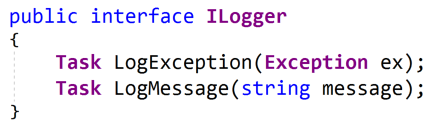
The ILogger interface has 2 methods (from the "Logging" project, ILogger.cs file):


Our logger implementations need to have methods to log an exception and to log a message.

As a side note, this is in a "Logging" project separate from the data reader and decorator projects. The idea is that the logger can be used by other parts of the application as well, so we have it is a location that can be easily shared.

A File Logger
For this application we will log to a file. So we have a FileLogger class that implements the ILogger interface. Here's the code (from the "Logger" project, FileLogger.cs file).


Since this implements that "ILogger" interface, it has both the "LogMessage" and "LogException" methods.

At the top of the class, we have a field to represent the log file. This is a hard-coded location: the application folder. So this will be in the same folder as the executable. The file name is also hard-coded: ExceptionLog.txt. We can parameterize these values if we need to, but this will get things working.

The "LogException" method uses a StreamWriter to write to a file. The "true" parameter used in the constructor specifies that we want to append to the file (it will also create the file if it does not exist).

Then we generate the message and write it to the log file.

Note: this is a naive implementation of a file logger. There are several things to take into consideration before using something like this in production. Primarily, if the logging fails (such as if it doesn't have permissions to write the file), then an unhandled exception will be thrown. Logging is a complex topic, and we should seriously consider using a third-party logger for our applications. Other people have solved this problem already. We should take advantage of that.

Using the Exception Logging Decorator
Just as we did with the retry decorator, to use the exception logger we just need to snap our pieces together in a different order.

Here is the code with the ExceptionLoggingReader added (in the "PeopleViewer" project, App.xaml.cs file -- again this code is different from what is in the GitHub project):


Let's walk this code from the bottom up. The last line creates a MainWindow class (the view). The view constructor needs an IPeopleViewModel. So above that, we create a view model (PeopleReaderViewModel) to pass to the view constructor.

The PeopleReaderViewModel constructor needs an IPersonReader. Above that, we create an ExceptionLoggingReader to pass to the view model constructor.

The ExceptionLoggingReader constructor needs both an IPersonReader (the wrapped data reader) as well as an ILogger. So above that, we create a ServiceReader and a FileLogger.

To use the exception logging decorator, we simply snap our pieces together in a different order.

Running the Application (Failure)
To see the functionality in action, we will run the PeopleViewer application just like we did above.

When we click the "Refresh People" button (and then click "Continue" when the debugger stops), we get the error popup:


Just like before, we get the generic failure message. But now we have a log file to look at.

Viewing the Log
As we saw above, the FileLogger uses the same path as the executable. We can navigate to that location to see the log file.

Note: the way I get there is to right-click on the "PeopleViewer" project in the Visual Studio Solution Explorer, then select "Open Folder in File Explorer". From there, I just click into the "bin" folder, then the "Debug" folder.

In that folder we find the "ExceptionLog.txt" file. Here is the content:


This shows that we got an "HttpRequestException" since the web service was not running. We can also see the stack trace showing that the exception was thrown in the "ServiceReader.GetPeople" method which was called by the "ExceptionLoggingReader.GetPeople" method.

The log file has all of the details of the exception. So we can use this to see what is really happening in our system.

Unit Testing the Exception Logging Decorator
Before wrapping things up, let's look at how we can unit test the ExceptingLoggingReader class. This is fairly similar to how we tested the RetryReader.

Testing the Happy Path
For the first test, we will check to make sure that nothing gets logged if the call returns successfully. Let's start by creating the objects. (The tests are in the "PersonReader.Decorators.Tests" project, ExceptionLoggingReaderTests.cs file.)


For this test, we can use the same BrokenReader fake class that we used for the RetryReader tests (see the previous article for details). When we pass "0" as a parameter, the calls will complete successfully (i.e., not broken).

A Fake Logger
When we create the ExceptionLoggingReader, we pass in the fake reader, but we also need an ILogger. We don't want to use the FileLogger because that would rely on the file system. Instead, I created an in-memory logger that can be used for testing.

This code is in the StringLogger.cs file (still in the same test project):


This class implements the "ILogger" interface, so it has the "LogException" and "LogMessage" methods.

At the top of the class is a public "Log" property. This is just a string to hold log messages. The methods append to this property. Since the property is public, we can inspect the value in our tests.

Note: these are asynchronous methods and must return a Task. An easy way to do this is with the "Task.CompletedTask" static property. This saves us from needing to create a new Task ourselves.

Finishing the First Test
With the fake logger in place, we can finish up the code for the first test (in the ExceptionLoggingReaderTests.cs file):


A new instance of the StringLogger is created for this test, so we know that the "Log" property will be empty when we start.

After calling the "GetPeople" method, we expect that the "Log" property will still be empty. And that is exactly what this test does.

Note: for more information on unit testing async methods, take a look at the previous article More DI: Unit Testing Async Methods.

Testing the Log
Now that we've tested that the ExceptionLoggingReader does nothing if there is no exception, let's test what happens if there *is* an exception.

Here is the test:


This test is set up a little bit different. First, notice that the "BrokenReader" constructor is passed a value of "1". This means that when we call the "GetPeople" method, we expect that it will be broken the first time. (And since we're only calling it once, this is all we need.)

The "expectedMessage" is set to an invalid value. The correct value should be set in the "catch" block as we'll see below. But if something goes wrong, we don't want our test to pass accidentally.

In the "try" block, we expect that the call to "GetPeople" will throw an exception. Because of this, I've added an "Assert.Fail" as a sanity check. If the "GetPeople" method does *not* throw an exception, then this block will get hit and the test will fail.

In the "catch" block, we look at the exception that is thrown. Since the ExceptionLoggingReader does not handle the exception, we will see it here. We can look at the exception message and use it as our "expectedMessage".

The assertion checks to see if the message from the exception we just caught is somewhere in the Log. If it is in the Log, then that means the exception was logged as expected.

Test Results
When we run these tests, we can see that they both pass:


Dependency Injection and the Decorator Pattern
Dependency Injection and the Decorator Pattern work really well together. Just like we saw with the RetryReader, we can use the ExceptionLoggingReader to injection functionality into our application. We just need to take our loosely coupled pieces and snap them together in a different order.

And since the decorator wraps an IPersonReader, it will work with any of our data readers (the ServiceReader, CSVReader, and SQLReader). And we did not need to modify any of our existing objects.

We did *not* need to change the view (MainWindow). We did *not* need to change the view model (PeopleReaderViewModel). We did *not* need to change the existing data reader (ServiceReader). We just snap our pieces together in a different order.

We can also stack our decorators so that decorators end up adding functionality to other decorators. This way we can add functionality a bit at a time, which makes it easier to test and also to combine in different ways depending on what our application needs. We will look at this in a future article.

Coming up, we will look at a CachingReader. This will add a client-side cache to the application. And as with our other decorators, we can get the functionality without modifying our existing objects. So be sure to stay tuned for more.

Happy Coding!